
Grabbing From Agilix Buzz
Platform Overview
GradeTransferer can grab scores from your Agilix Buzz assignments in the Activity Grader view and the overall course Score from your Gradebook! This allows you to effortlessly transfer your grades into your supported district gradebook. Watch the video overview to see it in action and keep reading for step by step directions and troubleshooting tips.
Grabbing - Activity Grader
GradeTransferer can grab student scores for a particular assignment in the Activity Grader.
Navigate to the assignment you want to grab from in the 'Activity Grader' view. You can find this by clicking the blue hyperlinked title of an assignment in the Gradebook.
Click the big, green 'Grab Data' button in the GT extension. The students names and grades from the 'Score' column will be retrieved automatically.
Check the popup summary to see what was grabbed before filling into your next gradebook.

Grabbing - Gradebook
GradeTransferer can grab student overall scores for a course in the Gradebook.
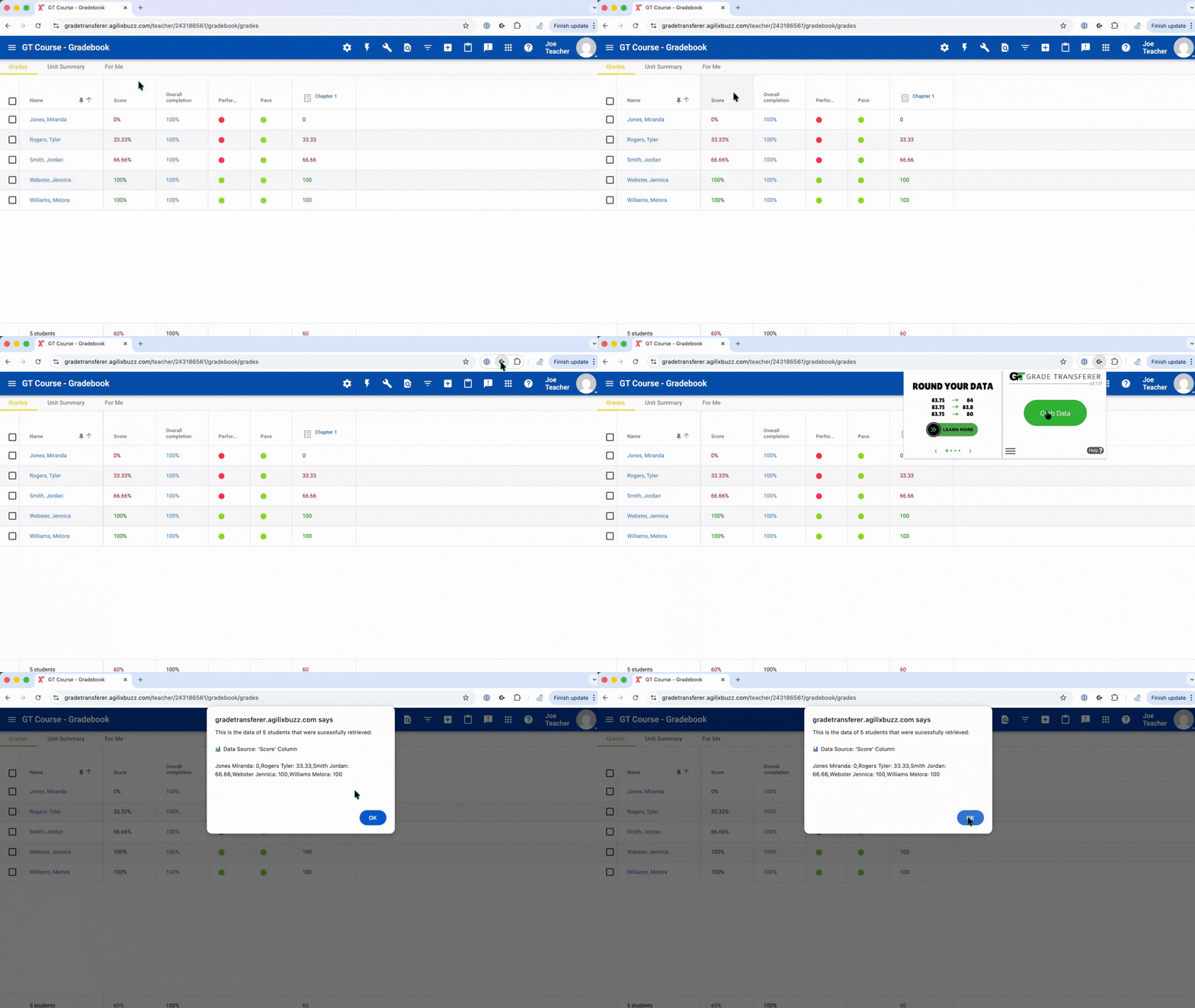
Navigate to the Gradebook page for your course. If the 'Score' column is not visible, adjust this setting in the Gradebook Options by clicking the gear button in the blue banner, then make sure 'Score' is checked under the 'Grade' section.
Click the big, green 'Grab Data' button in the GT extension. The students names and overall grades from the 'Score' column will be retrieved automatically.
Check the popup summary to see what was grabbed before filling into your next gradebook.
Troubleshooting
Grabbing issues? Make sure you are in one of the supported pages for grabbing depending on the type of information you want to retrieve...
Assignment Score - Activity Grader: You can find this by clicking the blue hyperlinked title of an assignment in the Gradebook.
Overall Course Score - Gradebook: Make sure the 'Score' column is visible. Adjust this setting in the Gradebook Options by clicking the gear button in the blue banner, and then make sure 'Score' is checked under the 'Grade' section.
Not all grades grabbed - particularly the bottom section of a large class?
Option 1: Zoom out on your browser page so all scores are visible before grabbing.
Option 2: Use the Grab More Feature to grab visible scores, then scroll and grab again, and repeat until all scores are retrieved.
Receiving an error message? Find the associated help article in our Troubleshooting Area.
Grades not filling into your next gradebook?
Do the rosters match? Check to see if the names on the page in Agilix Buzz look the same as they do from where you're trying to 'fill'. You can look at the pop-up summary or in the briefcase to see what's been grabbed.
If you've got the right class, look more closely at the student names to see if there are naming discrepancies, like typos, middle names, or other formatting issues. To fix name discrepancies, go to the Advanced Settings within GradeTransferer and use the Pattern Remover or the Name Discrepancy Fixer to teach GradeTransferer how the names should be recognized.
🎯 Remember to always review transfers for accuracy and completion. The GradeTransferer service can significantly speed up the transfer process and cut down on errors. However, just as with manual grading, it is the teacher's responsibility to verify that grades are correct within their gradebook.


